
A yellow battery icon means your phone is conserving power through built-in energy-saving settings

If your phone’s battery icon suddenly turns yellow, it’s usually not a cause for concern. This color change signals that Low Power Mode is active, a feature designed to preserve battery by limiting background activity and reducing performance. The shift is automatic on many devices once the battery dips to a certain level, but it can also be turned on manually. Understanding this mode helps you manage your phone’s power more effectively.
1. A yellow battery means your phone is in low power mode.
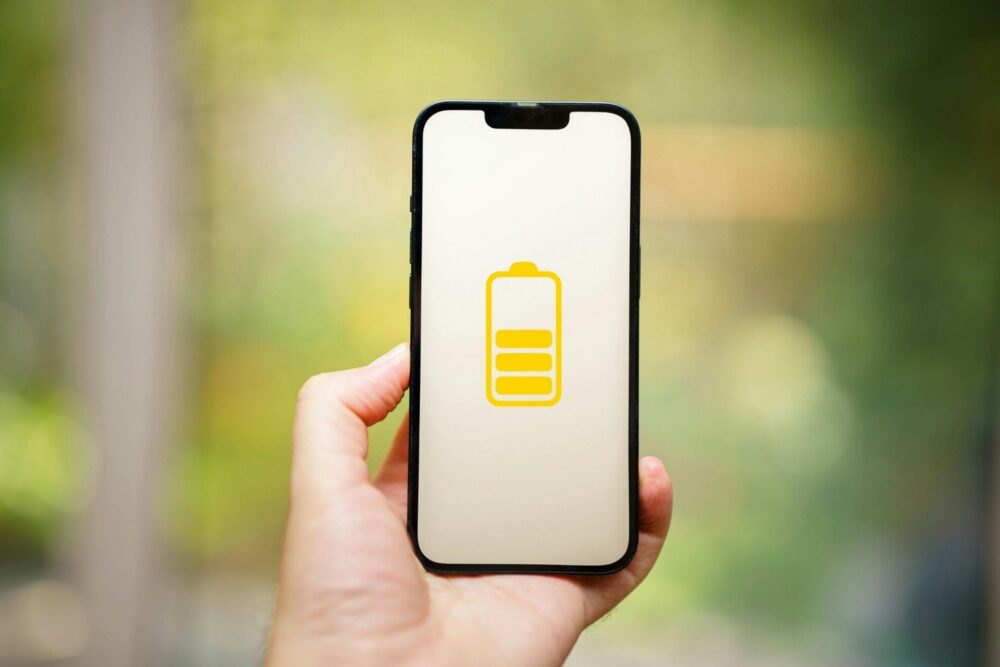
When the battery icon turns yellow, your phone has switched into low power mode—a system setting that reduces energy use when power runs low. On iPhones, this happens automatically at 20 percent battery unless manually triggered earlier through settings.
Rather than a problem, the color shift signals a feature working as intended. A commute home with 18 percent battery, for example, might prompt the change. Users often mistake the yellow tint as a warning, but it’s a flag for energy-saving—not danger.
2. Low power mode reduces background activity to preserve battery life.

Low power mode cuts back on what runs behind the scenes: automatic updates, background apps, and network syncing. These functions keep your device fresh but use steady power.
As a result, waking up to fewer email notifications or slower app loads during the workday could stem from this mode, not poor signal or a faulty app. The system’s intent is to delay shutdown without skipping core features like texts or calls.
3. Your screen may dim automatically to help conserve energy.
To limit power drain, your phone may dim the screen when low power mode is on. Along with changes to the display’s refresh rate or motion effects, a darker screen uses less battery.
Reading headlines or maps outdoors could feel slightly harder due to reduced brightness, especially under sunlight. This subtle shift often escapes notice indoors but plays a small role in preserving your remaining charge without halting usability.
4. Email fetch and app refresh are paused while in this mode.

Fetching email and refreshing apps in the background can quietly sap your battery. Low power mode temporarily halts these functions unless you open the app manually.
For instance, workout summaries or calendar invites won’t land until you check the relevant app. It’s not a glitch—it’s the phone choosing essentials over extras when battery is limited.
5. Background downloads and visual effects are temporarily disabled.
Animations and downloads that continue behind the scenes are suspended in low power mode. These cuts limit demanding tasks that otherwise run without prompting.
Downloading podcast episodes, installing updates, or watching moving backgrounds might pause in this mode. A zoom effect on your home screen may subtly disappear until normal battery status resumes.
6. Your phone may perform slightly slower to save power usage.

To stretch remaining energy, your phone may throttle chip performance. Under low power mode, tasks work more slowly, trading speed for endurance.
Opening a browser tab, loading a route in maps, or scrolling social media could feel slightly delayed. It’s not a malfunction. It’s the phone protecting itself when power dips below standard operating levels.
7. Low power mode activates at 20 percent battery unless customized.
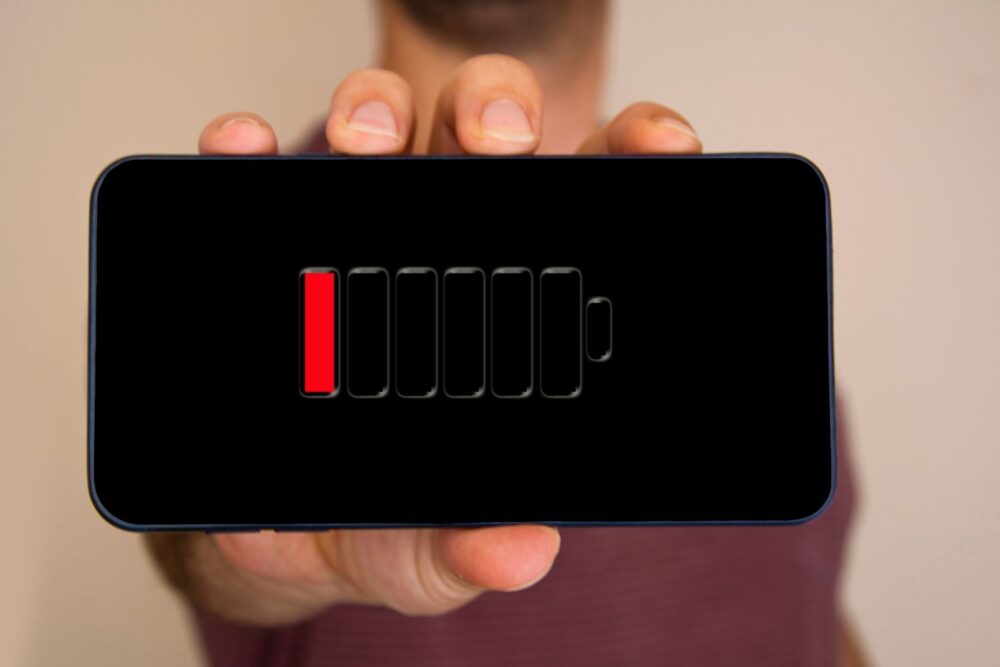
Most phones enter low power mode automatically at 20 percent battery. Apple devices do this unless the feature is disabled or manually overridden.
You might notice the yellow battery and fewer alerts around the same battery mark each time. The consistency is intentional. It’s the system stepping in to help before battery levels become critically low.
8. You can manually toggle low power mode in your settings.
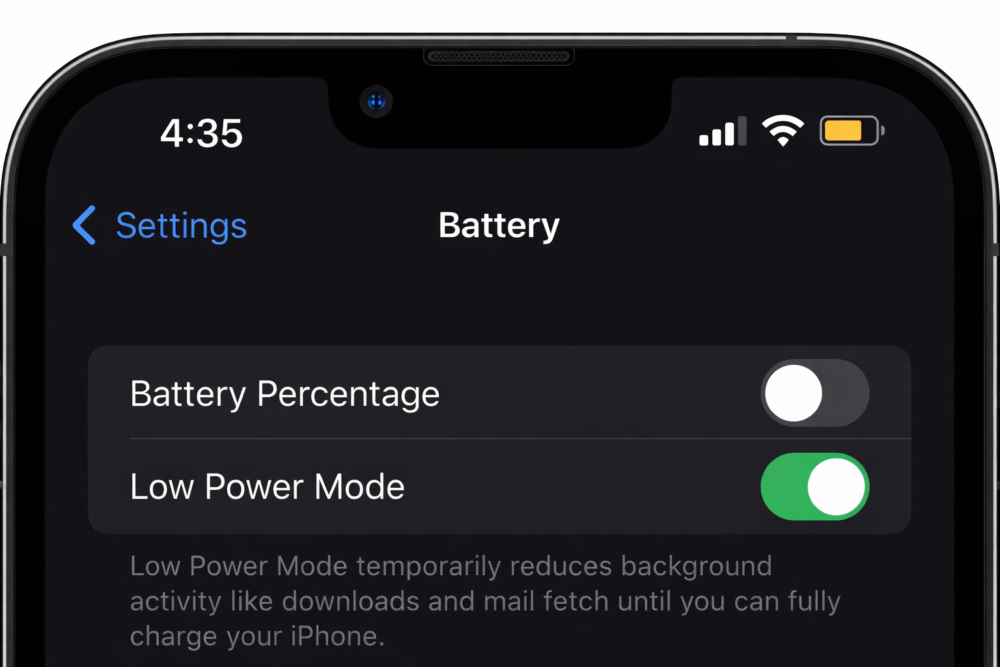
Low power mode can be toggled manually in your device’s settings. It’s listed under battery preferences and can be switched on or off with one tap.
Some users enable it preemptively before travel or long meetings. Once activated, the yellow battery icon appears instantly, along with the energy-saving limitations that follow.
9. The yellow icon signals battery-saving settings are currently active.

The yellow battery icon isn’t a bug or failure—it’s a status cue. That color swap simply indicates that certain energy-saving settings are turned on.
Noticing it after a software update or during a long day might hint that your phone is preserving itself. Think of it as a yellow light, not a red one.
10. Charging your phone disables low power mode by default.
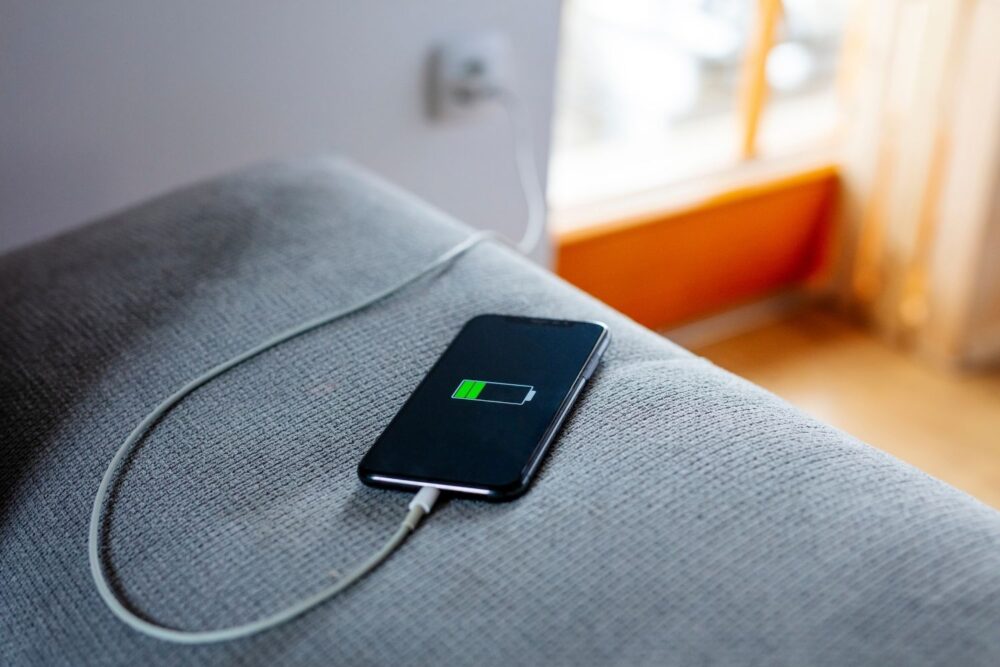
Once you plug in your phone and the battery hits around 80 percent, low power mode switches off automatically. The yellow icon reverts to green or white.
This change often happens in the background while charging on a nightstand or desk. Unless low power mode was set manually, the shift back to full performance typically comes and goes unnoticed.
11. Staying in low power mode helps extend battery life daily.

Keeping your phone in low power mode even when fully charged can slightly extend its battery lifespan. The reduced demand lowers heat and strain on the battery.
Over weeks of use, the difference might feel subtle—like needing to charge less often on busy days. Some users leave it on by habit, trading flashy features for battery conservancy.